Course Substitution Request Guide
Locate and Login to the Request Form
- In your iROAR account, go to the Student Self Service tab and navigate to the "Student Records" section. Select the request form link:

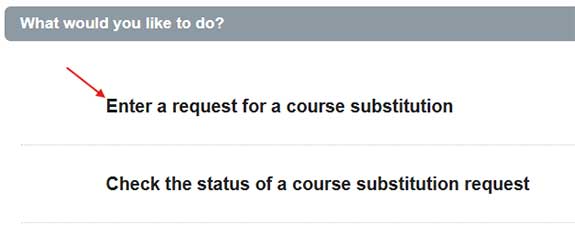
- Click to enter a substitution request. (You can return here at a later time to check the status of your request.)
Enter Academic Information
Academic Components of Your Substitution Request
1. Current Academic Program
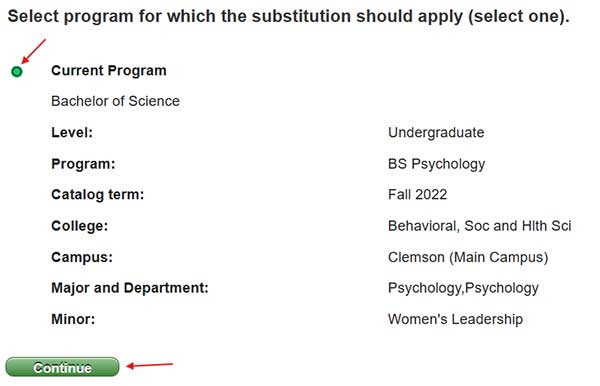
Your current academic program(s) will populate. Select the program to which the requested substitution will apply. Click "Continue."
2. Select Academic Requirement
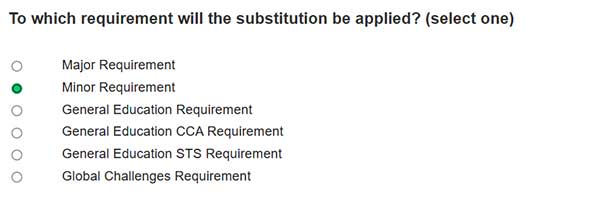
Choose the academic requirement to which the requested substitution will apply.
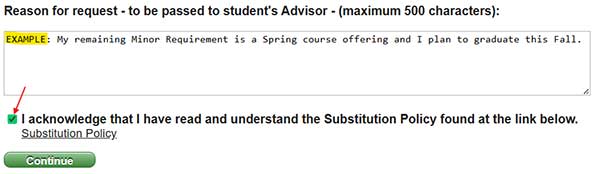
3. Justification of Request
Provide a brief justification for your substitution request in the space provided. Check the box to acknowledge that you have read and understand the Substitution Policy (link provided) and click "Continue."
Enter Substitution Information
Substitution Details
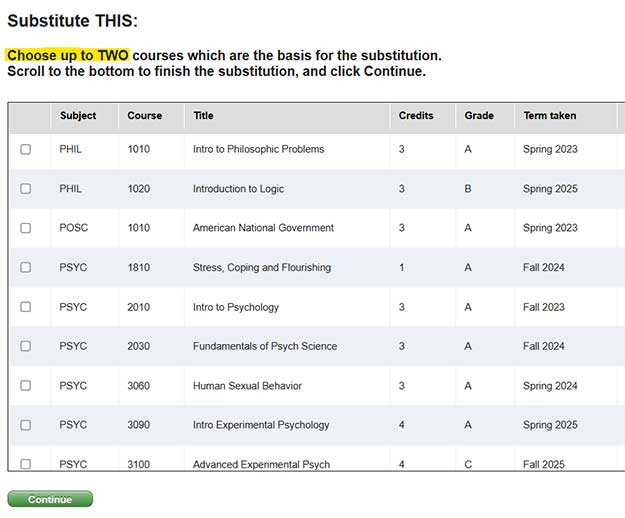
1. Course to Substitute for Another Requirement
Select one or two courses that may be substituted in place of another course or requirement. Scroll up or down to view all available courses. Click "Continue."
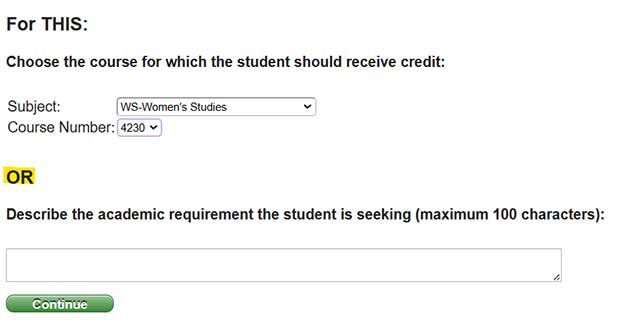
2. Select the Course for Which You Are Seeking Substitution Credit
Use the select boxes to choose the course for which you are requesting the substitution. You must select both the course and the course number. Or, you may describe the academic requirement in the space provided.
Final Steps
Confirmation and Submission Verification
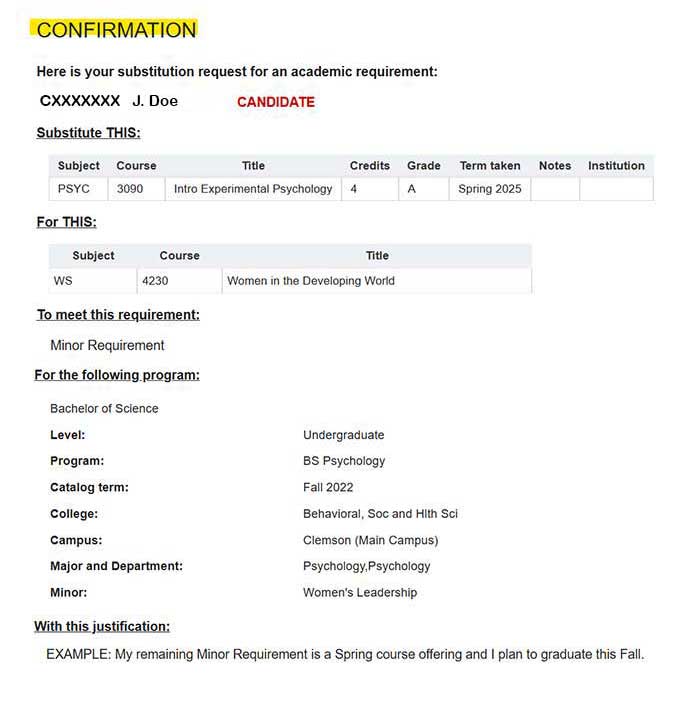
1. Confirm Substitution Request Details
Review the substitution details on the Confirmation screen and verify that all of the information is correct.
2. Affirm You are Ready to Submit the Request
Submission of your request initiates all substitution request processes and approvals. You must acknowledge that you have read and understand the Substitution Policy (link provided). Click "Submit."

3. Confirmation of Submission
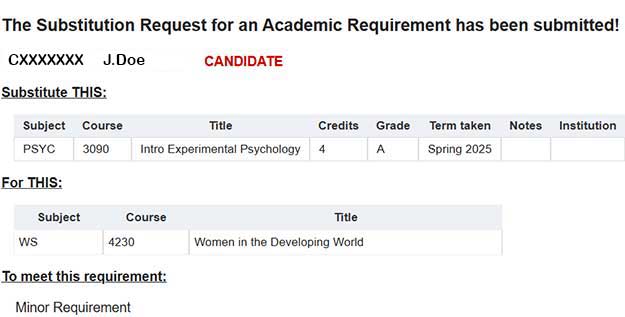
You will receive a notification that your Substitution Request for an Academic Requirement has been submitted.
- You will receive an email when the request has been approved or denied.
- Your record will be updated after all approvals have been completed.
- Print or save this notification for your records.