

Digital Accessibility for Outlook
Microsoft Outlook is an email and calendar application. As part of the Office 365 suite, Outlook is free for Clemson faculty, staff and students. While this guide focuses on Outlook, other email clients provide similar functionality. Refer to support articles for your preferred email client for guidance. Regardless of email client, these techniques require rich text emails.
Support Guides
Accessibility Checker
Microsoft products have a built-in Accessibility Checker that can help identify accessibility issues in emails. To enable the Accessibility Checker in Outlook:
- Compose a new email message.
- Select the Options tab.
- Select Check Accessibility.
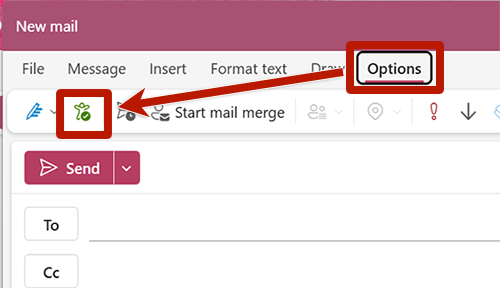
- Compose a new email message.
- Select Check Accessibility in the toolbar. If this option is not available:
- In the toolbar for the email message, select the three dots ("See more items") button.
- Select Customize Toolbar…
- Drag the Check Accessibility item to the toolbar.

Automated tools cannot detect all accessibility issues. Some elements require manual review:
- Color reliance: Avoid relying on color alone to convey meaning. Review for any instances of color reliance. Instances of color reliance may be subtle: for example, if replying inline with a different color text, a recipient who is colorblind may have difficulty distinguishing the author.
- Structure: Review emails for elements like headings, lists and tables. Confirm that appropriate styles are applied (heading styles, programmatic lists, table headers, etc.)
- Descriptive links: Use descriptive link text to help readers understand and navigate content.
- Alternative text: While the Accessibility Checker can alert authors to empty or AI-generated alternative text for images, it cannot verify accuracy. In its Inspection Results, the Accessibility Checker will indicate where Intelligent Services are used and prompt authors to review auto-generated alt text.
