
Skip to content
a pile of Microsoft Outlook logo tiles stacked on a blue background
Digital Accessibility

Outlook

Links in Outlook

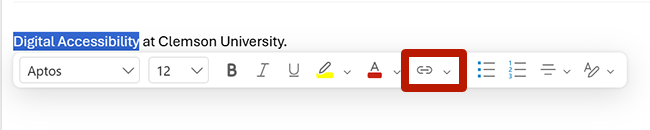
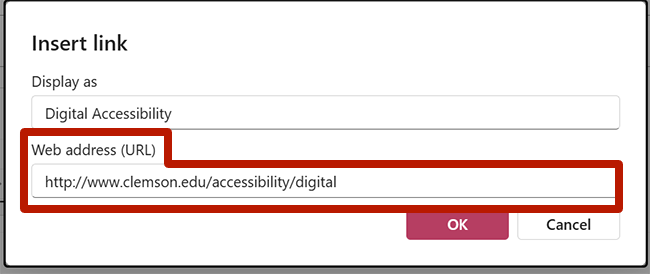
To create a link:

  1. Select the link text.
  2. Select the Link button from the Message tab or from the floating context menu.
  3. Enter the link URL in the Web address.
  4. Select OK.
Screenshot highlighting the hyperlink tool in the pop up toolbar in Microsoft outlook for windows. Screenshot of the hyperlink dialog in Microsoft outlook for windows.
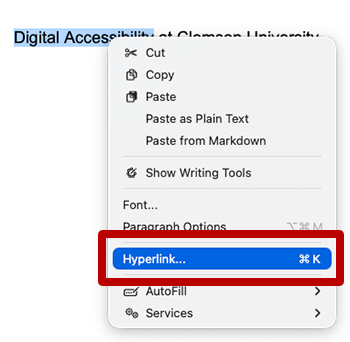
  1. Select the link text.
  2. Right-click the selected text and select Hyperlink… from the context menu.
  3. Enter the link URL in the Web address field.
  4. Select OK.
Screenshot highlighting the hyperlink tool in the right-click dialog in Microsoft outlook for windows. Screenshot highlighting the hyperlink dialog in Microsoft outlook for windows.

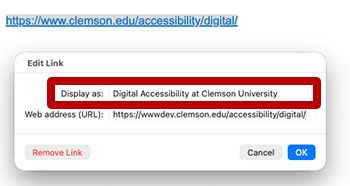
Outlook will automatically convert URLs and email addresses to links. To provide descriptive link text for a URL:

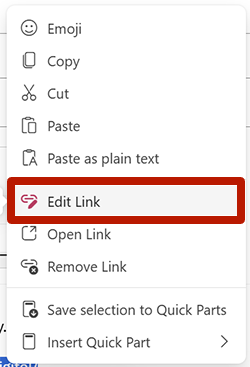
  • Right-click on the link text.
  • Select Edit Link.
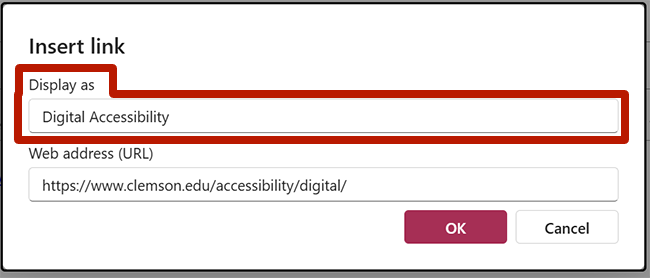
  • Edit the text in the Display as field.
  • Select OK.
Screenshot highlighting the edit link tool in the right-click dialog in Microsoft outlook for windows. Screenshot highlighting the Display As field in the Hyperlink dialog in Microsoft outlook for windows.
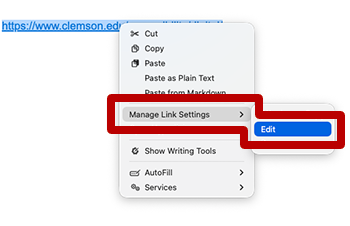
  1. Right-click on the link text.
  2. Select Manage Link Settings, then Edit.
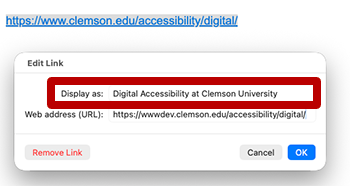
  3. Edit the text in the Display as field.
  4. Select OK.
Screenshot highlighting the hyperlink edit tool in the right-click dialog in Microsoft outlook for mac. Screenshot highlighting the link display text in the edit hyperlink dialog dialog in Microsoft outlook for mac.

Explore Further

Digital Accessibility

Digital Accessibility | Barre Hall