
Exporting to PDF from Word
Caution
Do not use Print or Save as Adobe PDF options to create a PDF.
Prepare for Export
- Run the accessibility checker in Word. Resolve any issues prior to exporting.
- Automated tools cannot detect all accessibility issues. Manually review the following: color contrast, color reliance, structure (headings, tables, lists), descriptive links and alternative text.
- Assign a Title to your document.
To assign a Title to your document:
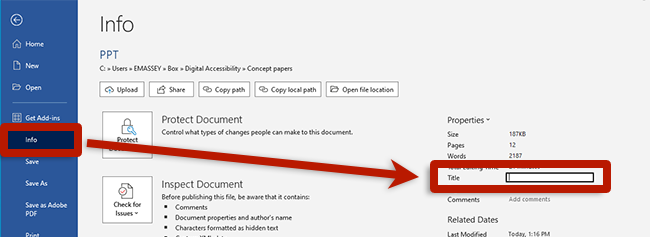
- Select File.
- Select Info.
- Under Properties, verify or update the Title text field.
- Select File from the App menu.
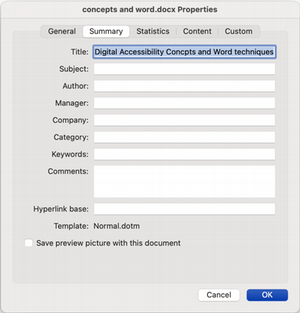
- Select Properties.
- Open the Summary tab in the dialog box.
- Enter the document's title in the Title field.
- Select OK.
Create PDF
To export a Word document to PDF:
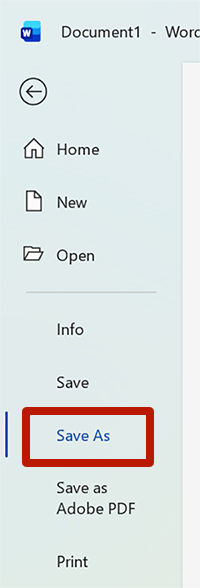
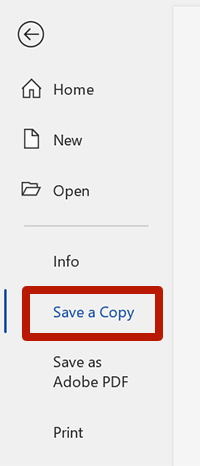
- Select File.
- Select Save As or Save a Copy.
- Select Browse.
- Enter the file name and choose the location for the PDF.
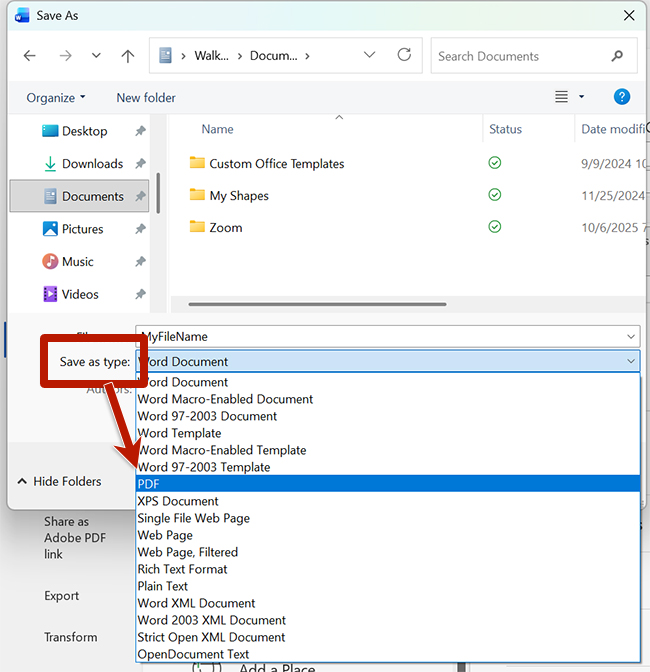
- For Save as type, choose PDF.
- Select Save.
- Select File from the App menu.
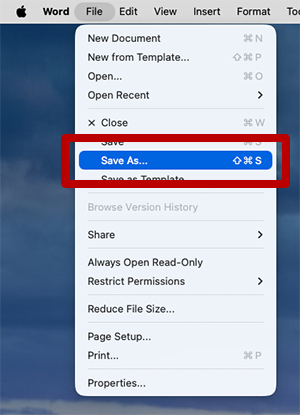
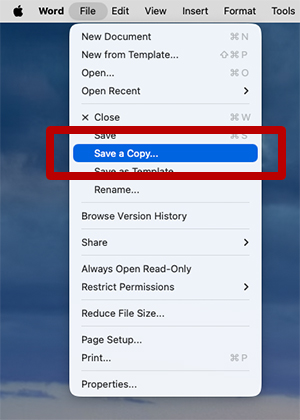
- Select Save As or Save a Copy.
- Enter the file name and choose the location for the PDF.
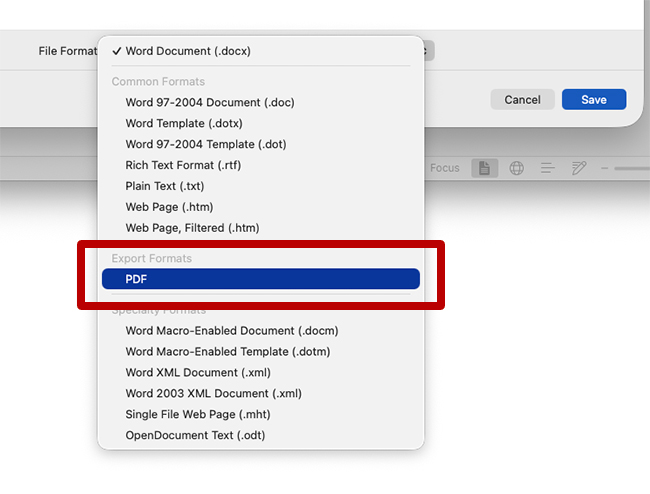
- For the File Format, choose PDF.
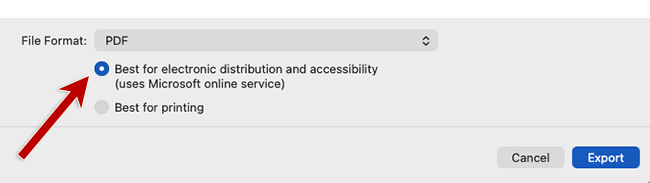
- Ensure Best for electronic distribution and accessibility is selected.
- Select Export.