

Word Templates
Styles
Using Microsoft Word's Styles, authors can apply accessible, customizable formatting to their documents. The Styles gallery is available in the Home tab.

Styles are used throughout the following guide to apply accessibility techniques in Word.
Clemson Brand Colors
To add a collection of Clemson brand colors across your Microsoft suite, download this XML file for the Clemson Dark theme, then follow the steps for your operating system.
Save the XML file to this folder:
\Users\YOUR_USERNAME\AppData\Roaming\Microsoft\Templates\Document Themes\Theme Colors
Replace YOUR_USERNAME with the username you are using on your computer.
To access the AppData folder, you may need to show hidden files in the File Explorer settings:
- Open File Explorer and navigate to
\Users\YOUR_USERNAME. - Select View > Show > Hidden items.
Save the XML file to this folder:
~/Library/Group Containers/UBF8T346G9.Office/User Content/Theme/Theme Colors
Note: The option to show the Library folder only appears if you are in the home folder. To show the Library folder:
- Press Command-Shift-H to open a Finder window.
- Go to View > Show View Options (or press Command-J).
- Check the box to show the Library folder.
Apply this color theme to a Word document:
- In the Design tab, select Colors.
- Choose Clemson Dark.

Templates
Clemson University templates are available when logged into Word with a Clemson ID. These templates use brand alternatives for font families that work across platforms.
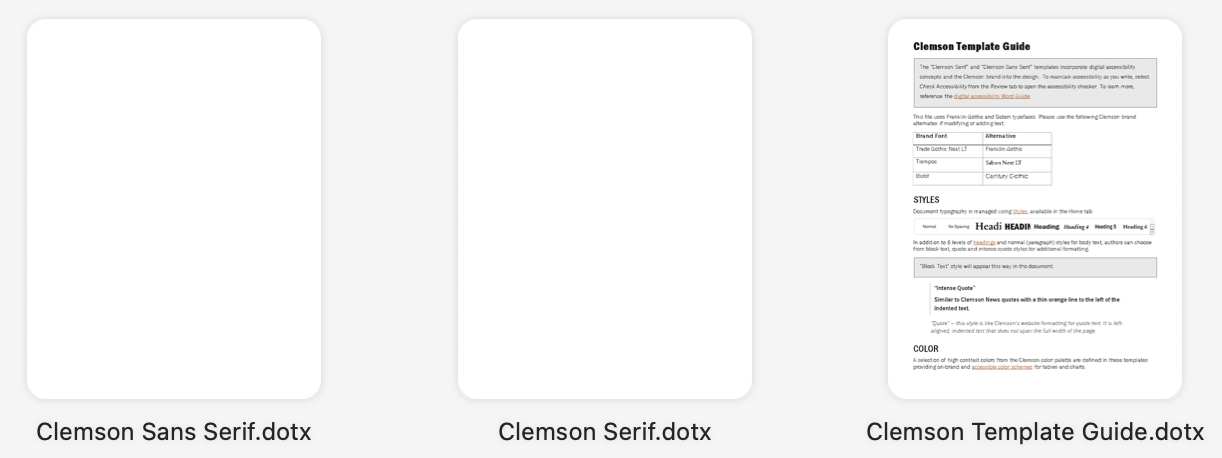
Templates are available with your choice of font style:
- Clemson Serif - This template uses Sabon Next LT; letters have "feet" and "flags."
- Clemson Sans Serif - This template uses Franklin Gothic Book; letters do not have "feet" and "flags."
- Clemson Template Guide - This file provides guidance on accessibility and the Clemson brand.
To access the Clemson templates
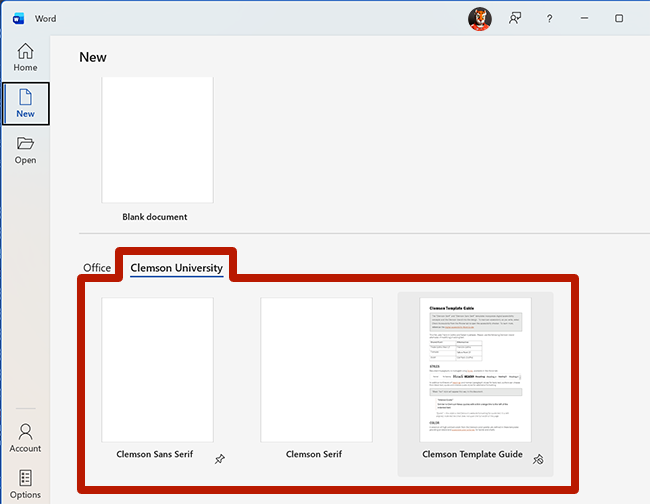
- Open Microsoft Word.
- Select File > New.
- Choose one of the Word templates under the Clemson University tab.
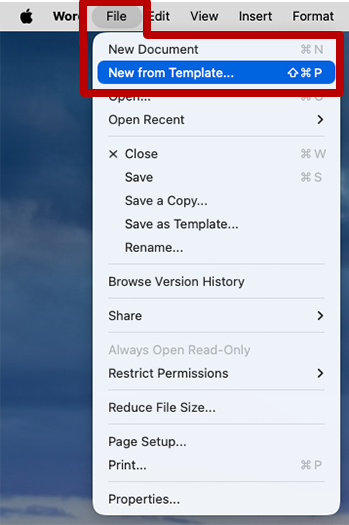
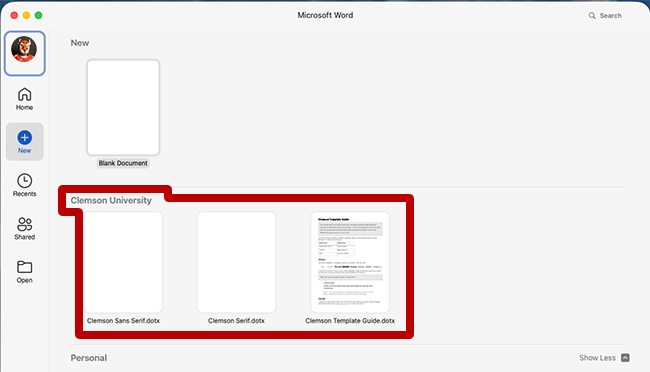
- Open Microsoft Word.
- Select File > New from Template... from the App menu.
- Choose one of the Word templates under the Clemson University heading. If the Clemson University section is not visible, select More templates.
Caution
Microsoft's built-in themes and templates are not always accessible and require additional review.
