

Images in Word
Alternative Text
To add alternative text to an image:
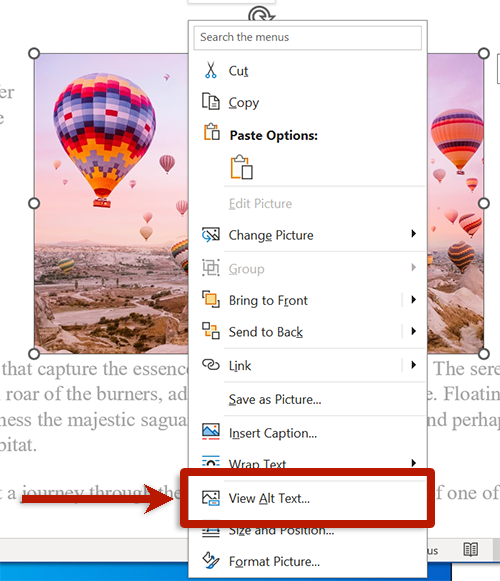
- Right-click the image.
- Select View Alt Text from the context menu.
- The Alt Text pane will open, where you can edit the image's alternative text.
Updates are immediately applied to the image.
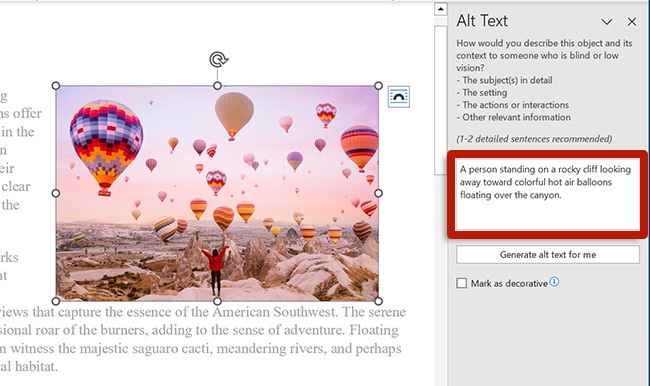
Word can generate alternative text for you. It will include a message indicating "AI-generated content may be incorrect." Review the generated alternative text, edit as needed, and check Approve alt text. Alternatively, remove the "AI-generated content may be incorrect" message from the alternative text. PowerPoint's Accessibility Assistant will alert you of any generated alternative text that hasn't been approved.
Grouped Objects
Grouped objects behave like a single image. Add alternative text to the group.
Decorative Images
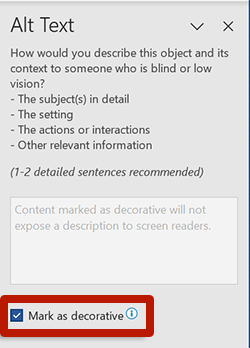
If the image is decorative, follow the same instructions to edit the image's alternative text. In the Alt Text pane, check Mark as decorative.
Reading Order: Anchoring Images
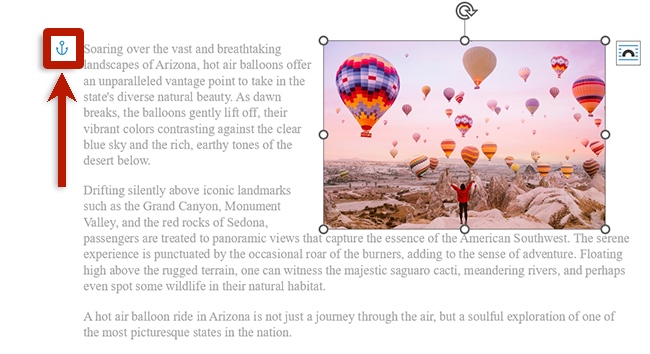
To specify where a wrapped image should appear in the document's reading order, authors may anchor the image.
To anchor an image:
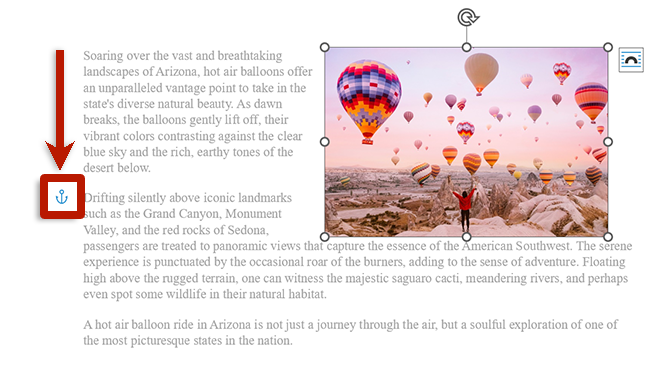
- Select the wrapped image. The image's associated anchor icon will appear on the left margin of the document.
- Drag the anchor icon up or down along the left margin to the location where the image should appear in the reading order.
Enabling Image Anchors
If the anchor icon is not visible, ensure object anchors are visible.
- Select the File tab.
- Select Options.
- Select Display.
- Check Object anchors.
- Select Word from the app menu.
- Select Preferences.
- Select View.
- Check Object anchors.
