

Color in PowerPoint
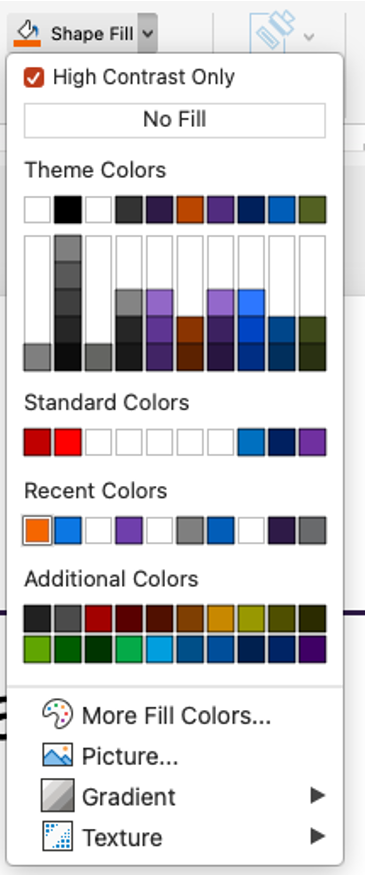
Using templates and themes, authors can customize the look and feel of PowerPoint presentations. To help ensure color contrast when designing, PowerPoint can filter colors that meet contrast requirements. In the Home ribbon, when selecting Font Color, Text Highlight Color or Shape Fill, choose High Contrast Only.
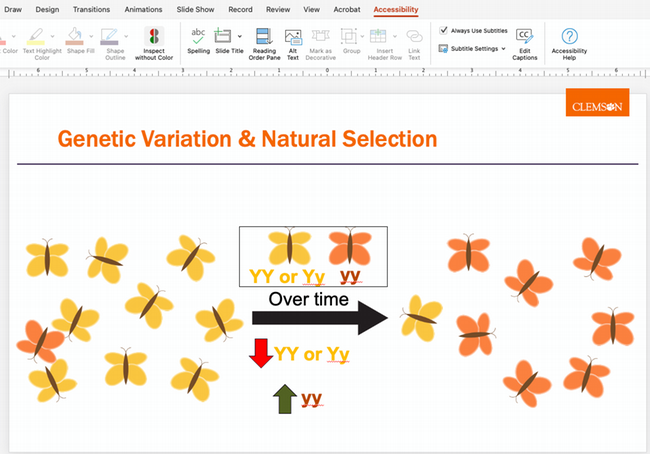
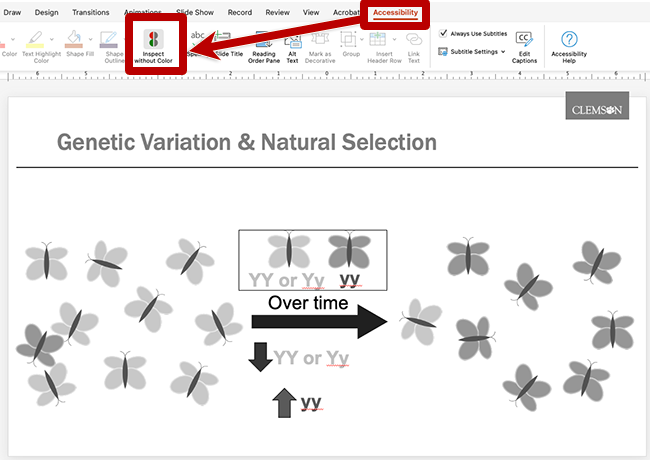
Additionally, PowerPoint provides an Inspect Without Color feature, available in the Accessibility ribbon. When enabled, slide content is shown in grayscale, allowing authors to review slide content without color to identify where color reliance needs remediation.
The Accessibility Checker in PowerPoint will identify color contrast issues, but some items may need manual review, including images that contain text. Colour Contrast Analyzer is a free tool that can assist with verifying color contrast.
