

PowerPoint Templates
Slide Masters
Slide masters allow authors to apply a consistent look and feel across all slides in a presentation. Slide layouts provide consistent structure and positioning for slide content. Starting with accessible slide masters and layouts helps streamline creating an accessible presentation.
Avoid including important information in slide masters or layouts: images and text on slide masters may not be conveyed to assistive technology.
Clemson Templates
Clemson University templates are available when logged into PowerPoint with a Clemson ID. These templates use accessible slide masters and layouts to provide a strong starting point for accessible presentations.
Presentation designs
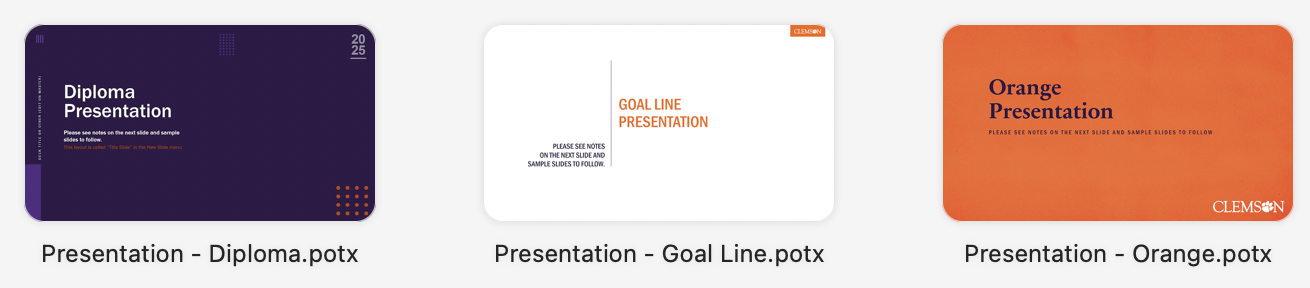
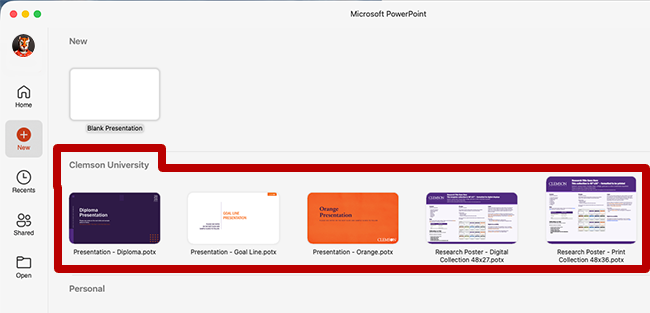
Multiple presentation designs are available, including:
- Diploma - Dark purple title and subsection slides with gray, textured content slides.
- Goal Line - White slides with orange titles and the Clemson wordmark throughout.
- Orange - Textured orange cover and content slides, orange or dark purple subsection slides and orange, purple or gray options for blank slide designs.
Research posters
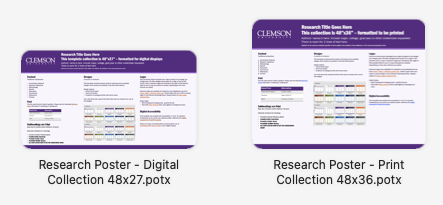
Two research poster templates are available, including a 48”×27” template formatted for digital displays and a 48”×36” template formatted for print.
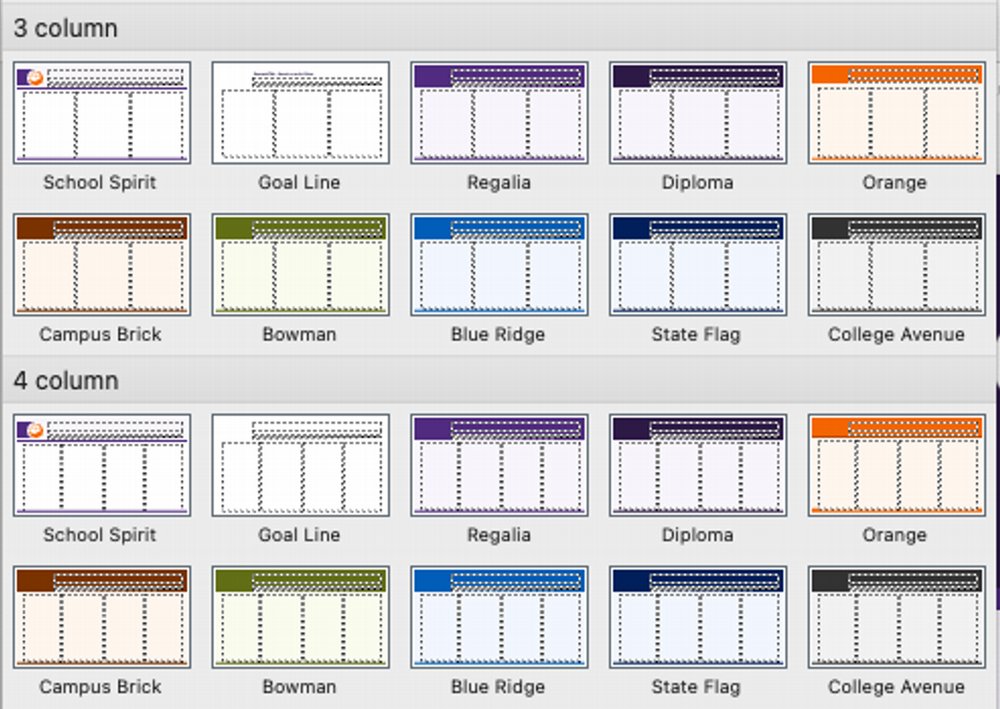
Research poster templates each offer a variety of brand colors in with three or four columns. Design options are available by selecting New Slide from the Home ribbon.
All templates include introductory slides offering guidance on accessibility and the Clemson brand. These slides should be deleted before presenting, distributing or printing.
To access the Clemson templates:
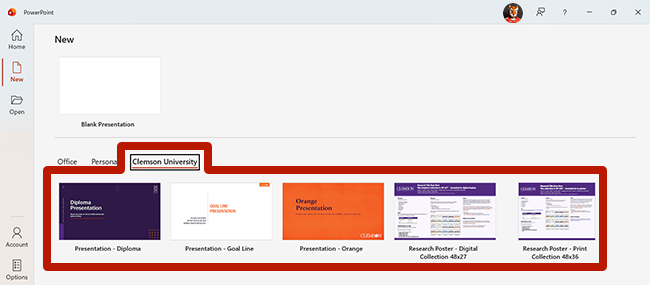
- Open Microsoft PowerPoint and select New.
- Select one of the PowerPoint templates under the Clemson University tab.
- Open Microsoft PowerPoint.
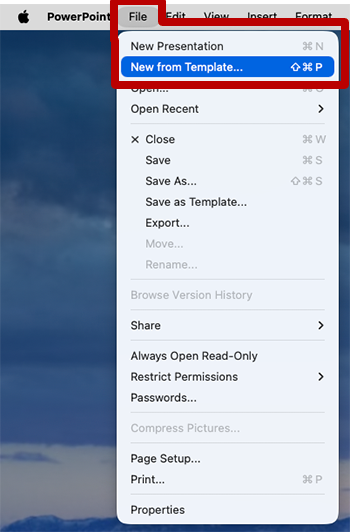
- Select File from the App menu.
- Select New From Template...
- Select one of the PowerPoint templates under the Clemson University heading. If the Clemson University section is not visible, select More themes.
Themes
Using PowerPoint's Themes, authors can apply accessible, customizable, branded formatting to their presentations. The Themes gallery is available in the Design tab. Themes include slide masters and layouts that can be used to apply a consistent look and feel to a presentation.
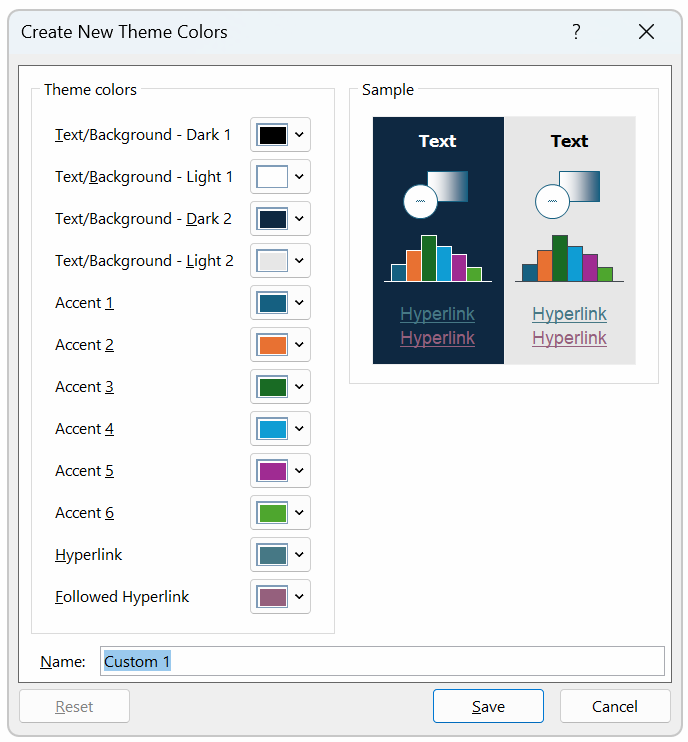
Themes also manage color throughout a presentation. To update the color of text, accents and hyperlinks, select the Design tab and choose Colors > Customize Colors.
Caution
Microsoft's default themes and design suggestions are not always accessible and require additional review.
Clemson Brand Colors
To add a collection of Clemson brand colors across your Microsoft suite, download this XML file for the Clemson Dark theme, then follow the steps for your operating system.
Save the XML file to this folder:
\Users\YOUR_USERNAME\AppData\Roaming\Microsoft\Templates\Document Themes\Theme Colors
Replace YOUR_USERNAME with the username you are using on your computer.
To access the AppData folder, you may need to show hidden files in the File Explorer settings:
- Open File Explorer and navigate to
\Users\YOUR_USERNAME. - Select View > Show > Hidden items.
Save the XML file to this folder:
~/Library/Group Containers/UBF8T346G9.Office/User Content/Theme/Theme Colors
Note: The option to show the Library folder only appears if you are in the home folder. To show the Library folder:
- Press Command-Shift-H to open a Finder window.
- Go to View > Show View Options (or press Command-J).
- Check the box to show the Library folder.
Apply this color theme to a document in PowerPoint:
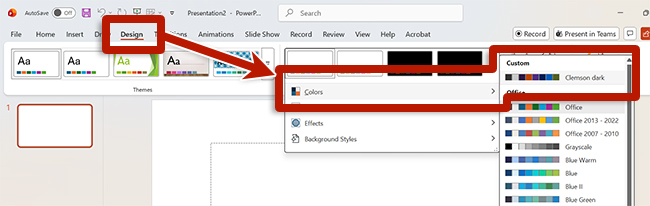
- In the Design tab, select Colors.
- Choose Clemson Dark.
Explore Further
- What is a slide master in PowerPoint?
- What is a slide layout?
- Customize a slide master
- Create your own theme in PowerPoint
- Change the color of text on a PowerPoint slide
- Add color and design to your slides with Themes
- Remove or change the current theme
- Save a slide design (theme) as a template in PowerPoint
