
Complex Images in PowerPoint
Techniques for long descriptions
Several techniques are available to provide long descriptions for complex images in PowerPoint slides.
On the slide
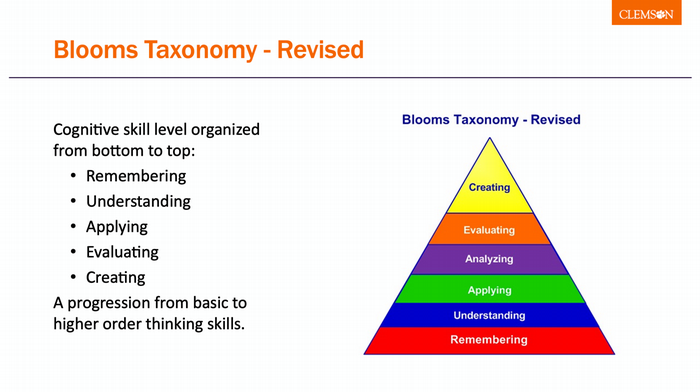
Long descriptions can be provided on the slide, next to a complex image. Consider this option when the visual information is directly transferable as a live text, a list or a data table.
In the following example, a long description of Blooms Taxonomy is provided in live text next to the diagram:
In slide notes
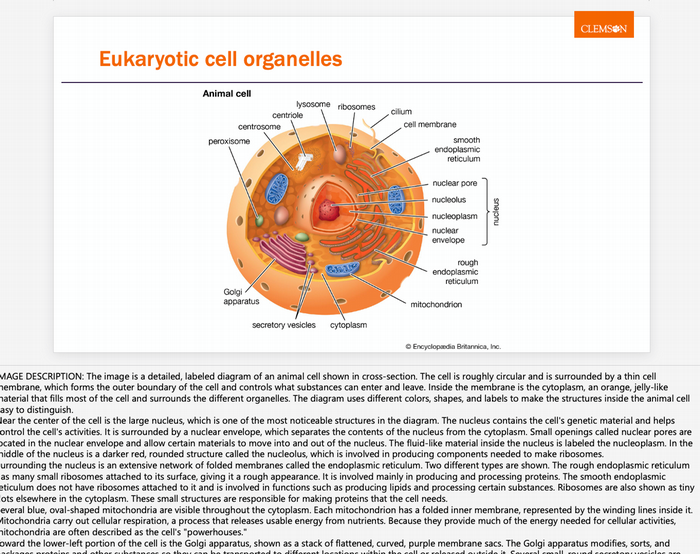
If a long description does not fit on the slide, consider providing one in the slide notes:
- Provide brief alternative text for the image, including a note to refer to the slide notes for a detailed description.
- Use the slide notes area to provide a long description.
Consider this option only when the source PowerPoint file is distributed.
In the following example, a long description is provided in slide notes. The alternative text for the complex image includes a reference to see the notes for a full description.
In an appendix
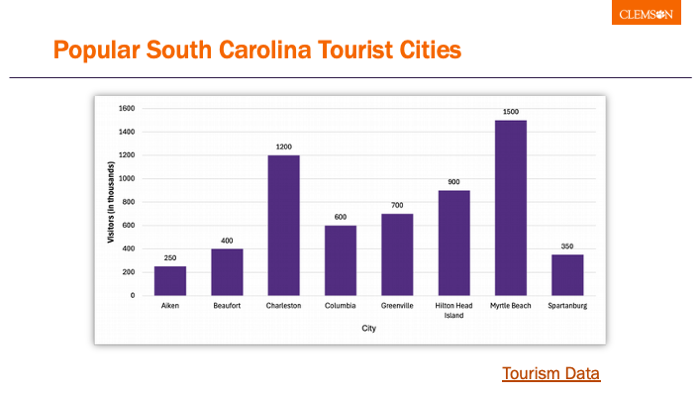
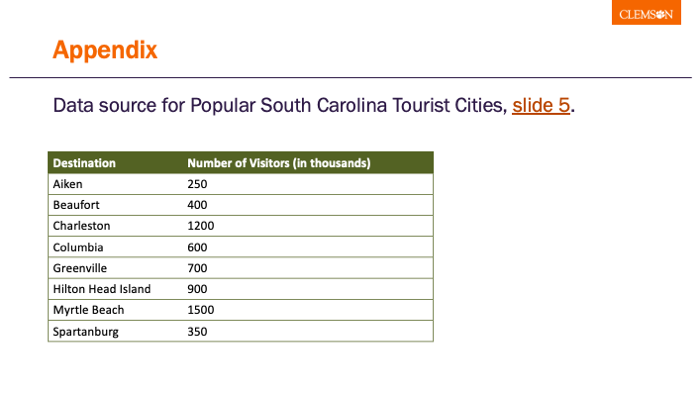
Another alternative for long descriptions is to provide an appendix slide that contains the long description and hyperlink between the slides. See Microsoft's documentation on linking between slides.
- Create an appendix slide with the long description in the slide content.
- On the slide with the complex image, provide a link near the image to view the long description. Link to the appendix slide with the long description.
- On the appendix slide, create a link to return the reader to the slide with the complex image.
Consider this option when providing data tables or when a PDF will be distributed instead of the source PowerPoint file.
In the following example, a bar graph is shown with a link to its data. The appendix slide links back to the bar graph slide.