
Exporting to PDF from PowerPoint
Caution
Do not use Print or Save as Adobe PDF options to create a PDF.
Prepare for Export
- Run the accessibility checker in PowerPoint. Resolve any issues prior to exporting.
- Automated tools cannot detect all accessibility issues. Manually review the following: color contrast, color reliance, structure (slide titles, tables, lists), descriptive links and alternative text.
- Assign a Title to your document.
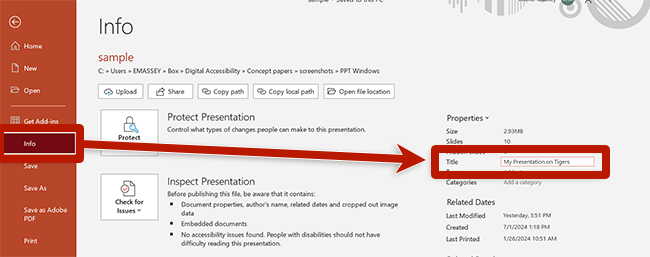
To assign a Title to your document:
- Select File.
- Select Info.
- Under Properties, verify or update the Title text field.
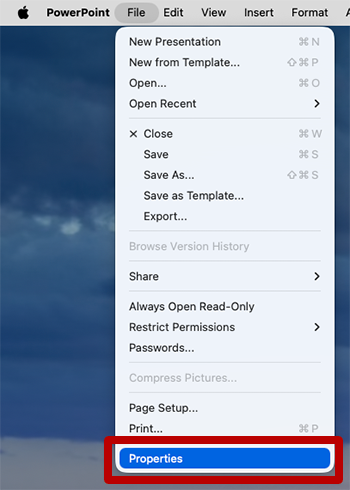
- Select Properties under File from the App menu.
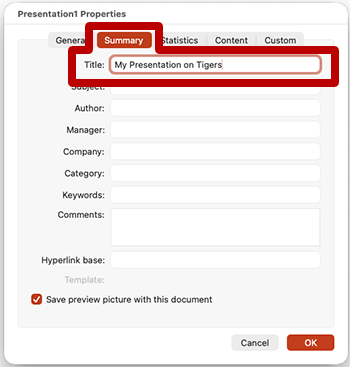
- Open the Summary tab in the dialog box.
- Enter the document's title in the Title field.
- Select OK.
Create PDF
To export a PowerPoint to PDF:
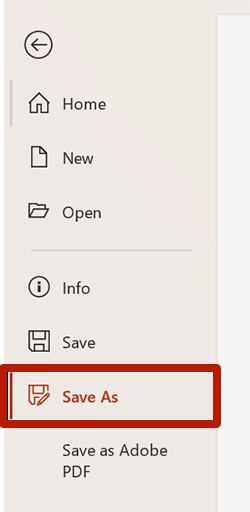
- Select File.
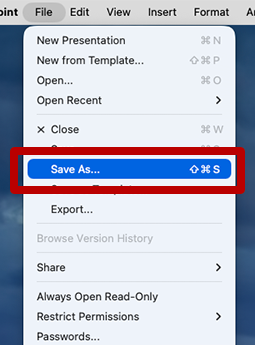
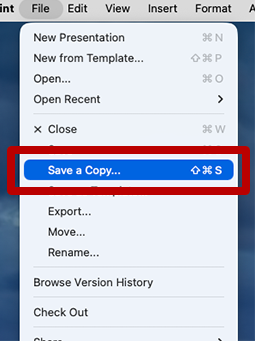
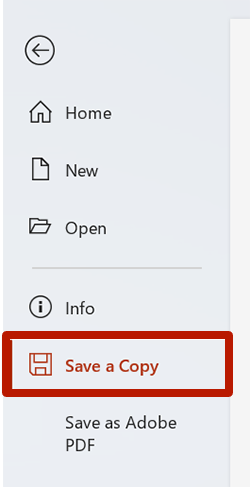
- Select Save As or Save a Copy.
- Select Browse.
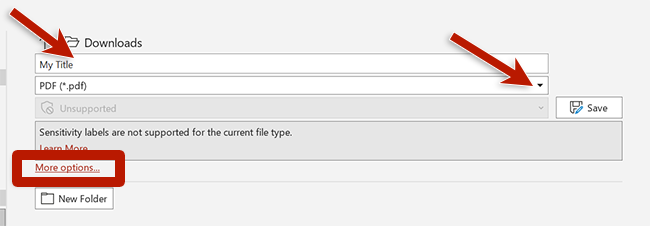
- Enter the file name and choose the location for the PDF.
- For Save as type, choose PDF.
- Select Save.
- Select File from the App menu.
- Select Save As or Save a Copy.
- Enter the file name and choose the location for the PDF.
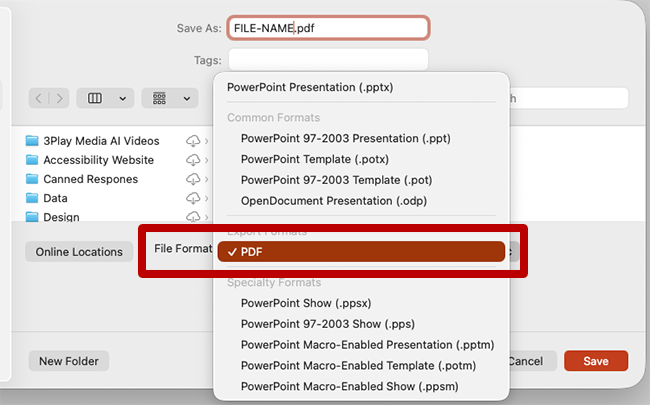
- For the File Format, choose PDF.
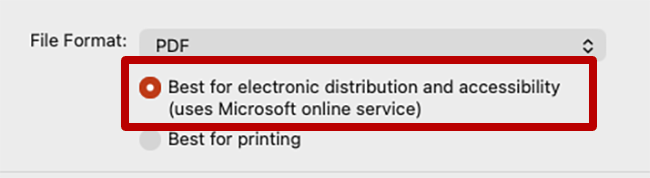
- Ensure Best for electronic distribution and accessibility is selected.
- Select Export.