

Images in PowerPoint
Alternative Text
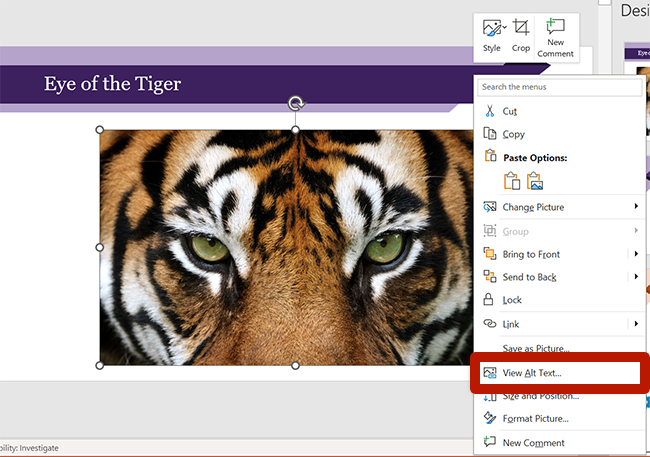
To add alternative text to an image or object:
- Right-click the object.
- Select View Alt Text from the context menu.
- The Alt Text pane will open, where you can edit the alternative text.
Updates are immediately applied.
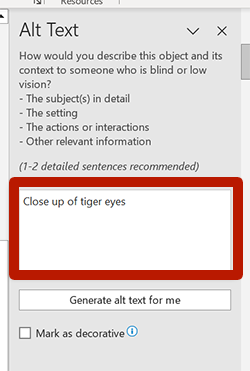
PowerPoint can generate alternative text for you. It will include a message indicating "AI-generated content may be incorrect." Review generated alternative text, editing as needed, and check Approve alt text. Alternatively, remove the "AI-generated content may be incorrect" message from the alt text. PowerPoint's Accessibility Assistant will alert you of any generated alternative text that hasn't been approved.
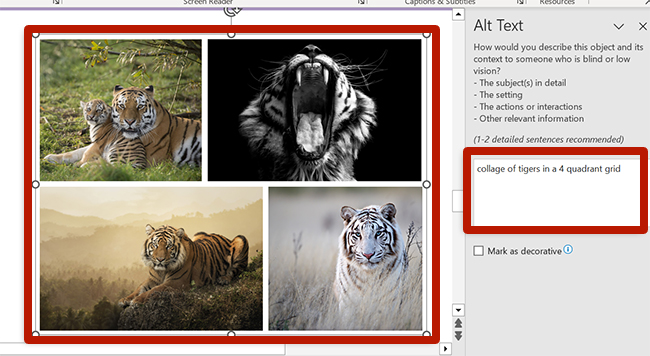
Grouped Objects
Grouped objects behave like a single image. Add alternative text to the group.
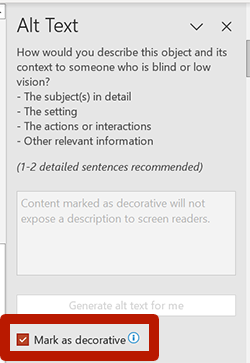
Decorative Images
If the image is decorative, follow the same instructions to edit the image's alternative text. In the Alt Text pane, check Mark as decorative.
SmartArt
Treat SmartArt like a grouped object, adding alternative text to the group. If needed, provide a long description.
Alternatively, convert the SmartArt to shapes to manage alternative text at a more granular level:
- Select the SmartArt.
- In the SmartArt Design ribbon, select Convert > Convert to Shapes.
- In the Shape Format ribbon, select Group > Ungroup.
- Manage each shape individually, marking as decorative or adding alternative text.
Reading order of these shapes is covered later in this guide.
Animations
Use animations with caution.
- Keep animated transitions minimal and subtle.
- When animations are on a slide with other content, limit animations to five seconds or move the animated content to its own slide.
- Adhere to guidance on flashing content.
